Make everyday writing easier
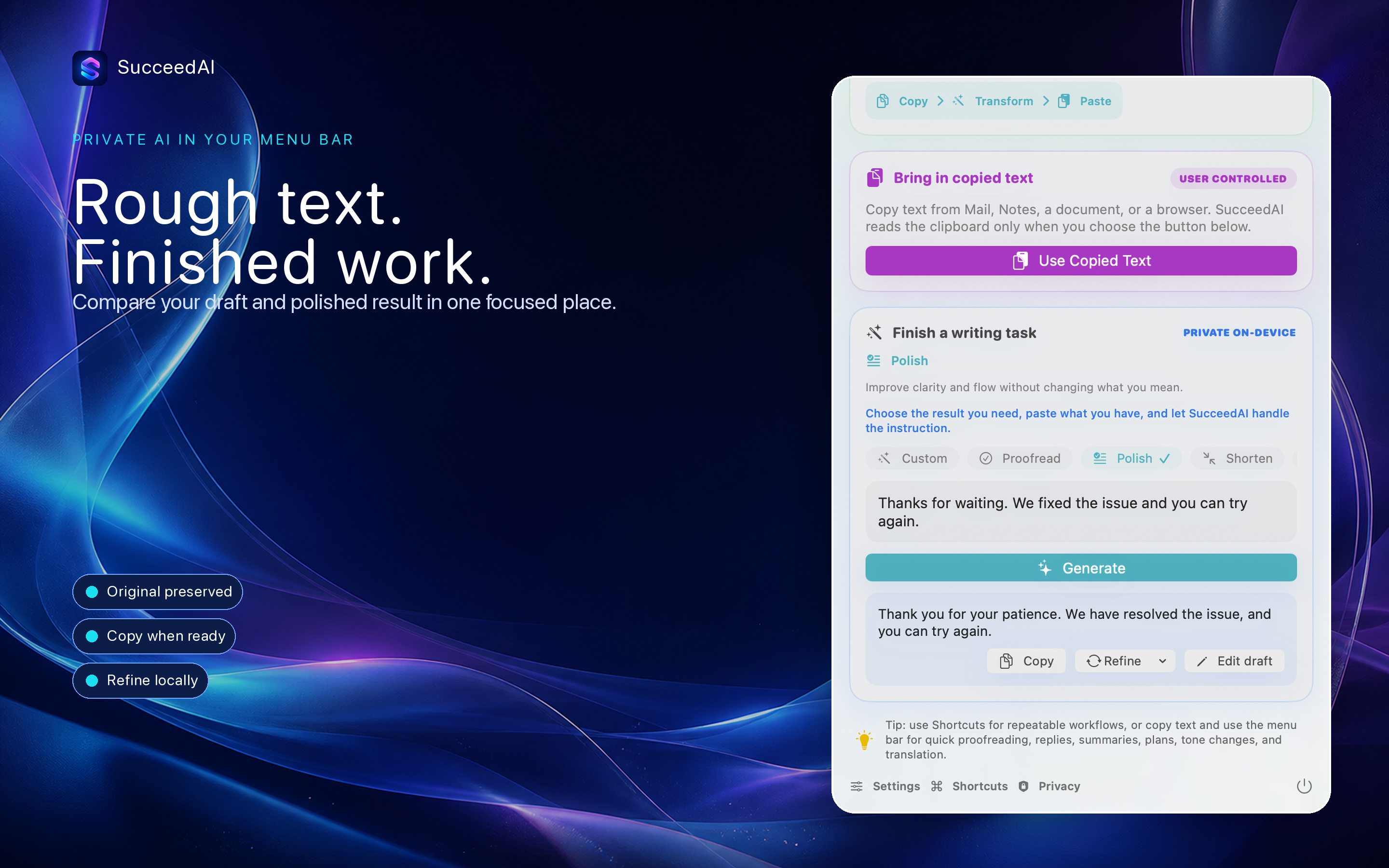
Copy the text you want to improve, choose a practical outcome, and generate a result privately with the language model already on your device.
Build SucceedAI for macOS
The current local-AI app is available as source. Build it with Xcode 26 for macOS 26 on a Mac that supports Apple Intelligence. Enable Apple Intelligence and allow its on-device model to finish downloading before generation.
Skip the complicated prompting
General chat tools make you explain the same common writing tasks again and again. SucceedAI keeps proven outcomes ready, makes the source and result easy to compare, and keeps processing on your device.
Useful outcomes
Proofread, polish, shorten, summarize, plan, translate, change tone, or draft a reply without constructing a long prompt.
Visible control
Keep the source, chosen action, custom request, and generated result separate and easy to review.
Private by design
Generate with Apple’s on-device language model without a SucceedAI account, API key, or prompt upload.
Non-destructive
Your copied source remains visible and unchanged while SucceedAI generates a new result.
No sensitive permission
The macOS app does not request Accessibility or Input Monitoring access and never monitors keystrokes.
Open project
Follow the public GitHub organization for releases, issues, support, and product updates.
Four clear steps from draft to done
Copy your text
Copy the message, notes, or draft you want to improve.
Import by choice
Open SucceedAI and choose Use Copied Text.
Choose an outcome
Pick a focused action or write a custom request.
Review and copy
Generate locally, approve the result, and paste it wherever you choose.
Made for the places you already write
Rewrite rough replies, soften tone, tighten long messages, and create sharper subject lines.
Notes
Turn fragments into action items, summaries, plans, and cleaner meeting notes.
Support
Turn copied customer messages into clear, considerate replies.
Marketing
Generate launch copy, social hooks, product blurbs, and concise positioning.
Development
Improve issue comments, pull request descriptions, release notes, and docs.
Daily writing
Translate, simplify, expand, shorten, polish, or brainstorm in one focused workspace.
Your writing stays on your device
SucceedAI uses Apple’s on-device language model. It has no SucceedAI backend, account, analytics SDK, advertising SDK, or third-party AI key. The macOS app requests neither Accessibility nor Input Monitoring access.
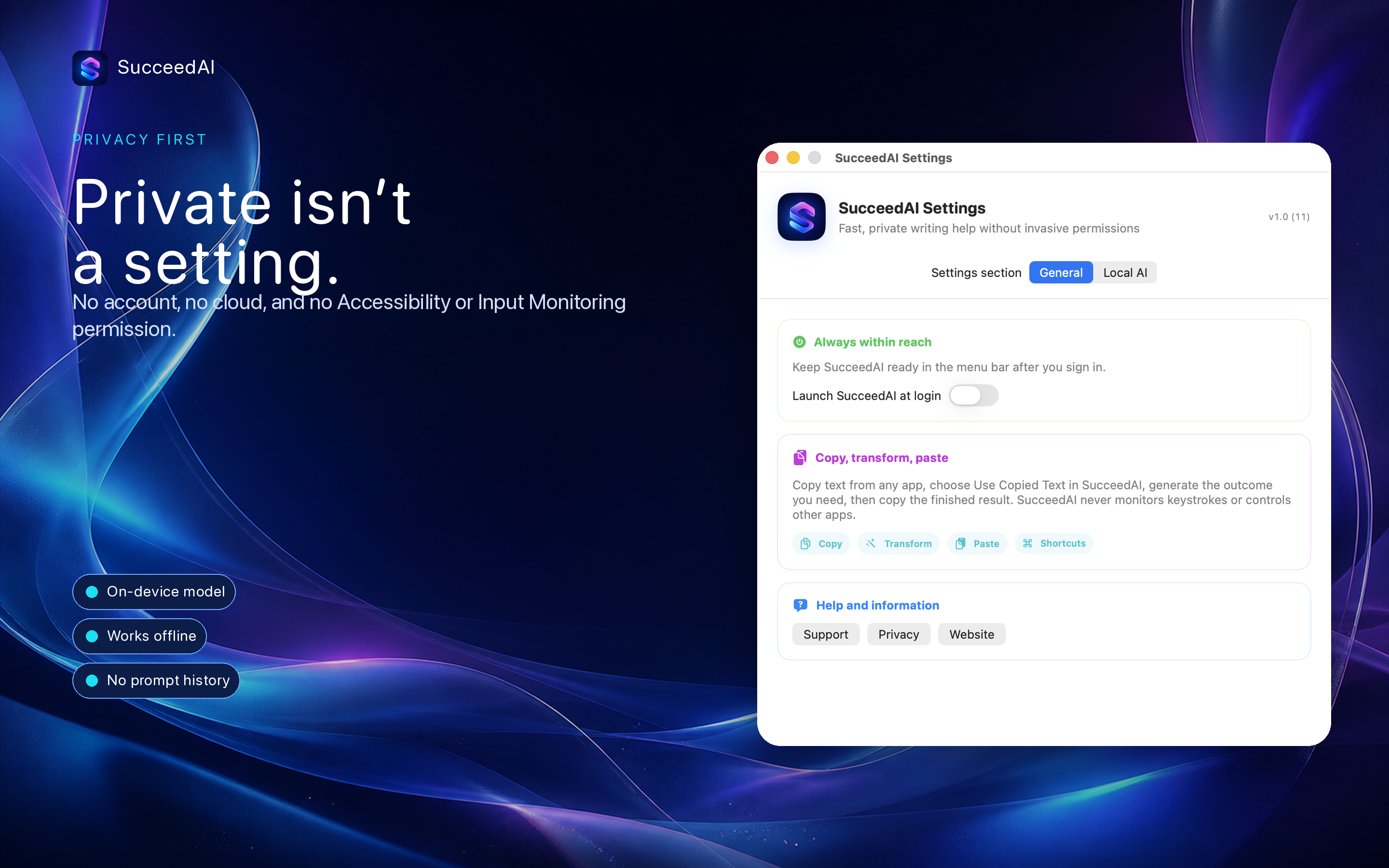
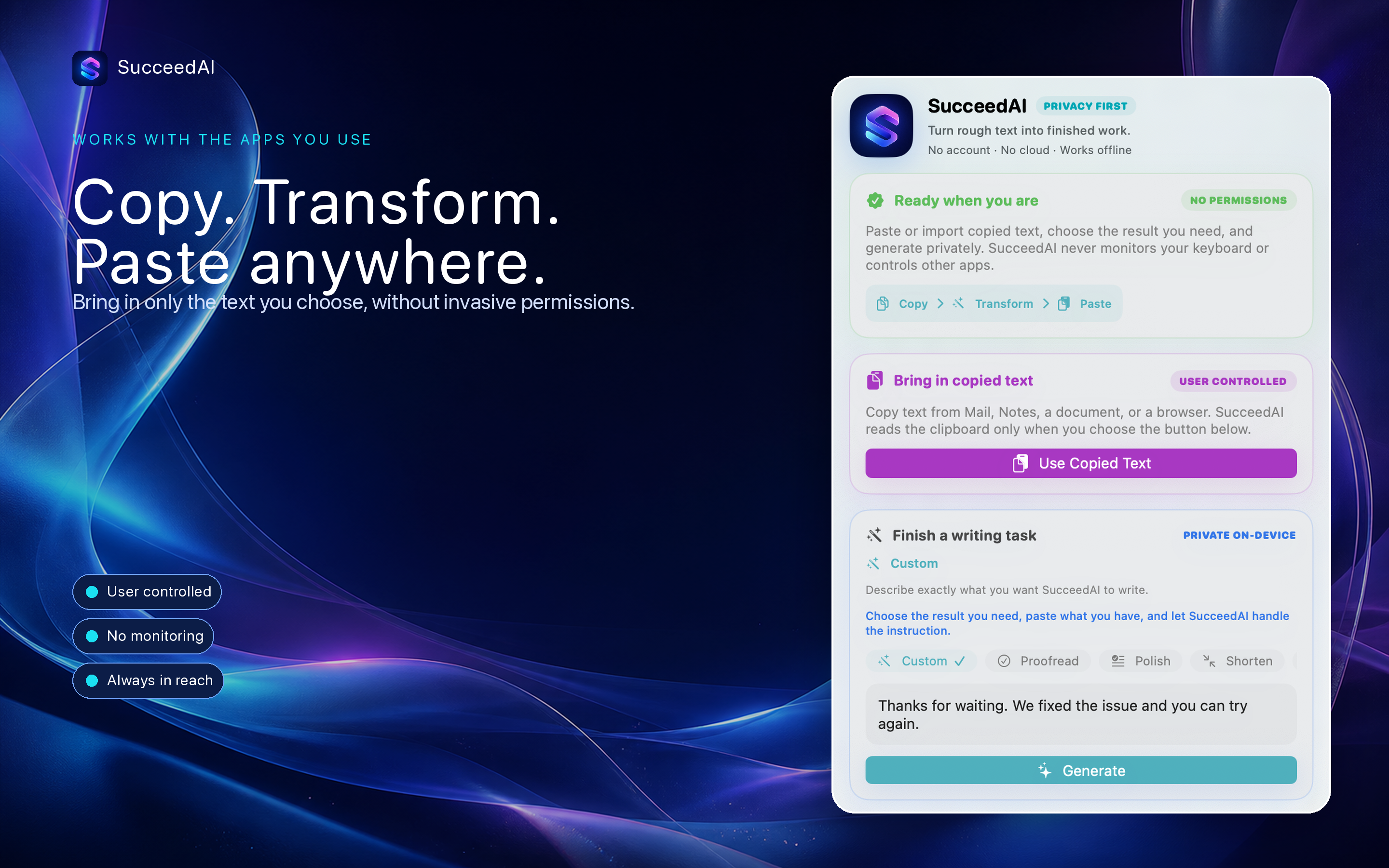
The menu bar app stays out of the way until you need it. It imports clipboard text only after you choose Use Copied Text and copies a result only after you choose Copy Result.
FAQ
What is SucceedAI?
SucceedAI is a private local AI writing assistant with focused tools for proofreading, polishing, summarizing, planning, translation, tone, and replies.
Does SucceedAI require Accessibility permission?
No. The macOS app requests neither Accessibility nor Input Monitoring permission. It does not monitor global keyboard input or control other apps.
When does SucceedAI read the clipboard?
Only after you explicitly choose Use Copied Text. The imported text remains visible in the composer so you can review it before generation.
How is this different from using a general chatbot?
SucceedAI keeps common writing outcomes ready, shows the source and result separately, and runs the language model on your device without a SucceedAI server or account.
Where can I get the app?
The current local-AI version is available to build from source with Xcode 26. It requires macOS 26 and an Apple Intelligence-capable Mac. A downloadable binary for this version has not been published on GitHub Releases.
What happens if generation fails?
Your source draft remains unchanged and visible. SucceedAI shows a clear error instead of putting error text into your result.
Turn everyday writing into clear next steps
SucceedAI is built for people who want useful, private writing help without complicated prompts or a cloud account.